

Currently Empty: 0,00 $
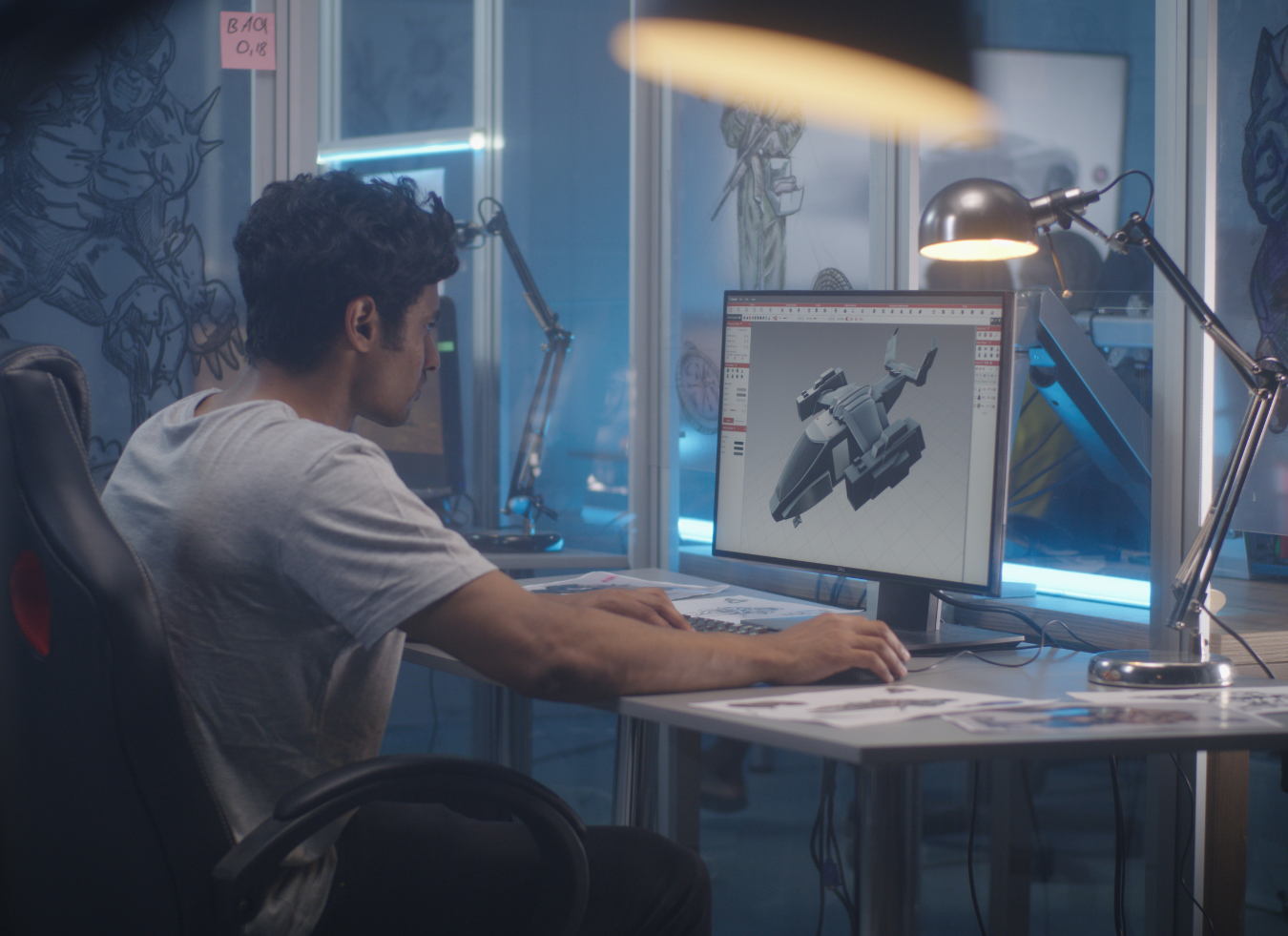
Curious about trying Blender? Here’s how to spend your first 30 minutes in this powerful, free 3D modeling and animation software.
Are you captivated by video games or animated films? Do the intricacy and realism of 3D models and animations fascinate you? Have you ever wished you could create something that comes alive on the screen?
Believe it or not, diving into 3D animation is more accessible than ever, and you can embark on your journey in the next five minutes by downloading Blender. This popular 3D modeling software is completely free to use, so there’s no financial barrier or risk involved. All you need is time and a willingness to navigate the learning curve.
What Is Blender?
Blender is a robust modeling program used to build 3D assets for a variety of creative projects. It’s widely used in animation design, visual effects, video games, virtual reality applications, 3D printed models, interior design renders, and much more.
Blender supports the creation of 3D assets at every stage, from modeling to motion tracking. It even includes a built-in video editor, allowing you to fine-tune animation sequences without the need for additional software.
Other Reasons to Try Blender
– Free and Open-Source: If you’re familiar with Python, you can use Blender’s API to tailor it to your specific needs.
– Cross-Platform Compatibility: Available for Windows, Mac, and Linux.
– Thriving Community: There’s a large, active community dedicated to improving Blender, sharing tips, and offering support.
– Beginner-Friendly: Countless online resources are available to help you get started at your own pace.
3 Steps for Installing Blender
Before you download Blender, ensure your computer meets these requirements:
– Operating System: Windows 8.1, 10, or 11; macOS 10.15 Intel or 11.0 Apple Silicon; Linux distributions using glibc 2.28 or newer.
– Hardware: 64-bit quad-core CPU with SSE4.2 support (64-bit eight-core CPU recommended); 8 GB RAM (32 GB recommended); 1920×1080 Full HD display (2560×1440 recommended); 2 GB VRAM Graphics Card supporting OpenGL 4.3 (8 GB VRAM recommended); less than 10 years old.
– Input Devices: Mouse, trackpad, or pen+tablet.
Step 1: Download Blender
Go to [www.blender.org/download](https://www.blender.org/download).
Step 2: Choose Your Version
Click the “Download Blender” button for the Windows installer or select other versions like the macOS, Linux, or portable file from the drop-down menu.
Step 3: Install Blender
– Windows: Locate the installer in your Downloads folder, double-click it, follow the Setup Wizard prompts, and click Finish. Blender will be ready to open from the Desktop or Start menu.
– macOS: Locate the installer in your Downloads folder, double-click it, drag the Blender icon into the Applications folder, and open Blender from Applications or Launchpad.
How to Use Blender: The Basics
Before diving into your first 3D model, take some time to familiarize yourself with Blender’s basic features. Using a 3-button mouse makes navigation easier, so the
following instructions include middle button/scroll wheel commands. If you plan to spend a lot of time in Blender, a 3-button mouse will enhance your experience.
Navigating the Viewport
When you open Blender, you’ll see a 3D cube in the viewport. Use these commands to navigate:
– Rotate View: Hold the middle mouse button and move your mouse.
– Pan View: Hold SHIFT + middle mouse button and move the mouse.
– Zoom In/Out: Use the scroll wheel or hold CTRL + middle mouse button and move your mouse up/down.
Transforming Objects
Transform an object by moving, rotating, or scaling it. Select the cube with a left-click and try these actions:
– Move: Press G, then X, Y, or Z to move along that axis. Without specifying an axis, you can move freely in two dimensions.
– Rotate: Press R, then X, Y, or Z to rotate along that axis. Without specifying an axis, you can rotate based on your current view.
– Scale: Press S, then choose an axis. Without specifying an axis, the object scales uniformly.
Confirm transformations with a left-click or cancel them with a right-click.
Adding New Objects
Press SHIFT + A to bring up the Add menu. Under Mesh, select the type of object you want to add. To delete an object, select it with a left-click and press Delete.
Editing Objects
Switch from Object Mode to Edit Mode by pressing TAB. The interface changes, and new tools appear on the left.
Select the Move tool (four arrows pointing in different directions). Use these editing modes:
– Vertex Editing Mode: Press 1. Click and drag vertices (black dots at corners) to change the shape.
– Edge Editing Mode: Press 2. Edges (black lines between vertices) can be moved, rotated, or scaled.
– Face Editing Model: Press 3. Faces (surfaces bounded by edges) can be transformed similarly.
Hold SHIFT to select multiple vertices, edges, or faces. Press F to fill gaps with new edges or faces.
Other Common Tools
For more complex shapes, try these tools:
– Extrude (Face Editing Mode)*: Select a face and press E to extend or retract it.
– Inset (Face Editing Mode): Press I to create a smaller face inside the selected face, then extrude it for hollow spaces or indents.
– Bevel (Edge Editing Mode): Select an edge and press CTRL + B to round it. Drag to adjust size and scroll to change roundness.
Become a Blender Expert
Now that you know the basics, you’re ready to create simple 3D models in Blender. But this is just the beginning! There’s much more to learn and countless tools to master.
Blender might seem overwhelming initially, but don’t rush. Take it one step at a time with beginner tutorials and gradually explore advanced features. With patience and practice, you’ll soon be a Blender pro!