

Currently Empty: 0,00 $
Education
Master the art of baking textures in Blender with this comprehensive guide.
- November 27, 2024
- Com 0
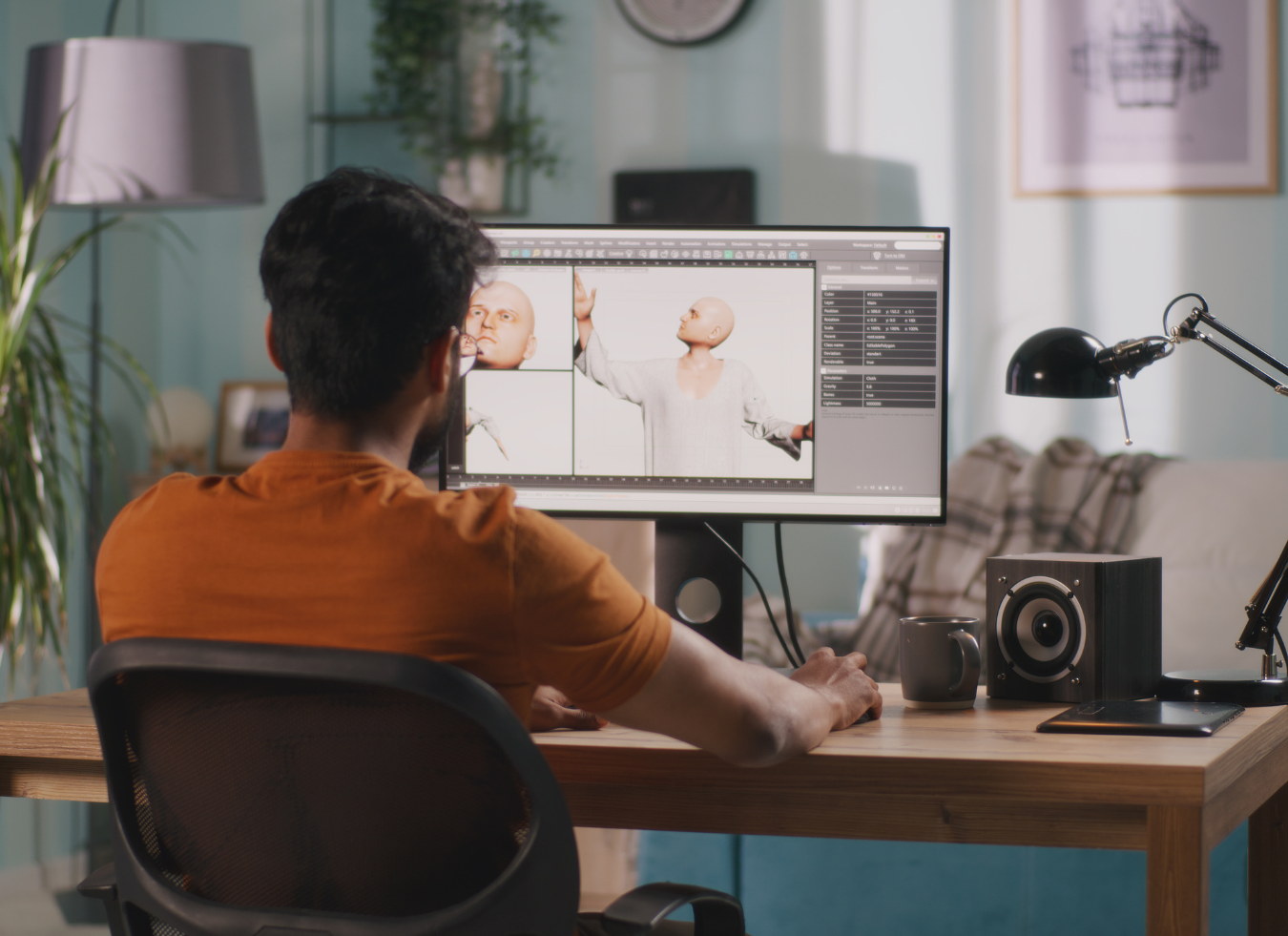
When creating a 3D model in Blender, 3D geometry allows you to develop unique patterns with textures, enhancing your designs significantly. You can either import these textures or create your own using meshes. Regardless of your choice, rendering such detailed textures in real-time applications, like video games or virtual reality, requires substantial computing power. To ensure optimal performance, especially in real-time scenarios, it’s essential to bake textures before exporting your design.
Feeling a bit lost? No worries! Let’s dive deeper into the texture baking process and optimize your Blender workflow.
Understanding Texture Baking
What is Texture Baking?
Texture baking in Blender involves converting a high-resolution model into a lower-resolution version. This process transforms the bumps and shadows of your 3D model into a flat image texture, which can then be applied to the simplified model.
Why is Texture Baking Important?
Texture baking is crucial for maintaining high performance in real-time applications like video games and VR experiences, preventing lag and glitches. By simplifying your 3D model and exporting it in common image formats, you enhance compatibility with various game engines. Additionally, baking textures can improve workflow efficiency by incorporating elements like procedural textures or ambient occlusion into your base image, making texture painting faster and providing a solid foundation for further edits.
Types of Texture Baking
There are several types of texture baking in Blender, commonly used for procedural textures and shader details:
– Diffuse Map (Albedo Bake): Preserves the base color of a high-poly mesh and can be combined with other textures to create complex materials, like adding roughness to mimic flaking paint.
– Normal Map: Captures fine details such as bumps and wrinkles, converting them into a grayscale layer that interacts with light to make objects appear more realistic.
– Specular Map:: Reflects the glossiness of details like shiny spots, turning them into a grayscale image that reflects light.
– Roughness Map: Determines how rough a surface appears, producing a grayscale image where white areas denote matte surfaces and black areas indicate shininess.
– Ambient Occlusion: Represents how light bounces around objects, using another grayscale texture to define light-blocking areas and add depth and realism.
Step-by-Step Guide to Baking Textures
While baking textures in Blender is relatively straightforward, the process varies based on the type of map you’re working with. Here’s a general guide to get you started:
Preparation Steps:
Place your high-poly and low-poly models side by side.
Use UV unwrapping to create a 2D layout of your 3D model.
Create a material for your low-poly object, ensuring it’s connected to the color output, texture (normal map), and roughness to the ‘normal’ input of the principled BSDF shader node.
Baking Diffuse & Specular Maps:
Select your low-poly model to make it the active object. In the top menu, click ‘Bake’ and then ‘Bake’ again.
In the bake panel, choose ‘Diffuse’ or ‘Specular’ under the ‘Bake Type’ section.
Click the ‘New’ button next to ‘Image’ to create a new texture for your map.
Set the ‘Target’ option to ‘Diffuse’ or ‘Specular’.
Click the ‘Bake’ button at the bottom of the panel.
Baking Normal & Roughness Maps:
Change your render engine to ‘Cycles’ in the scene properties panel (Blender’s real-time engine Eevee does not support baking textures).
Navigate to the ‘Bake’ section in render properties and select ‘Normal’ for normal maps or ‘Combined’ for roughness maps.
Create a new image texture by clicking the image icon next to ‘Bake’ and set the resolution.
Input a value for ‘Ray Distance’ (calculate the largest dimension of your object and multiply by 0.01).
Click ‘Selected to Active’ to bake information from the high-poly model, then click ‘Bake’.
Handling Multiple Materials & Complex Textures:
When managing complex textures, baking individual textures might be more practical than merging multiple materials into one texture map. Blender’s Cycles rendering mode supports baking multiple textures simultaneously, but this advanced technique often requires combining texture layers in compositing software.
If you’re new to 3D modeling, consider simplifying your details and using clear, descriptive names for your baked textures to manage them efficiently.
By mastering texture baking, you can optimize performance, enhance compatibility, and streamline your Blender workflow. Whether you’re a beginner or looking to refine your skills, these tips will help you bring your 3D designs to life more effectively. Happy baking!